Use Cases
On this page, we want to explain to you different use cases of Monitizer and how you can use it for your own work. Monitizer hast quite a variety of applications and it can be confusing to understand. Therefore, we explain seperate possible use cases.
Use Cases
In the following, we describe several use cases and how you can use Monitizer in each of them. We try to define the use cases by asking questions. If you identify with any of the use cases, continue reading there.
Use Case 1: The End User
Do you simply want a working runtime monitor without having to understand how they work?
Do you have your own NN and maybe your own dataset?
Do you just want the best monitor for your application?
Continue here Use Case 1 - The End User
Use Case 2: The Developer of Monitors
Are you interested in runtime monitoring and how it works?
Do you maybe have your own monitoring approach and want to compare it to other techniques?
Do you want to compare different methods in detail?
Continue here Use Case 2 - The Developer of Monitors
Use Case3: The scholar
Are you a PhD student or already graduated and want to try out fancy things?
Do you just need some code base so you don’t have to do all the coding yourself?
Continue here Use Case 3 - The Scholar
Use Case 0 - The Tester
This is your section if you can answer one of the following questions with yes:
Do you only want to see that Monitizer runs properly?
Do you want to play around without implementing your own stuff?
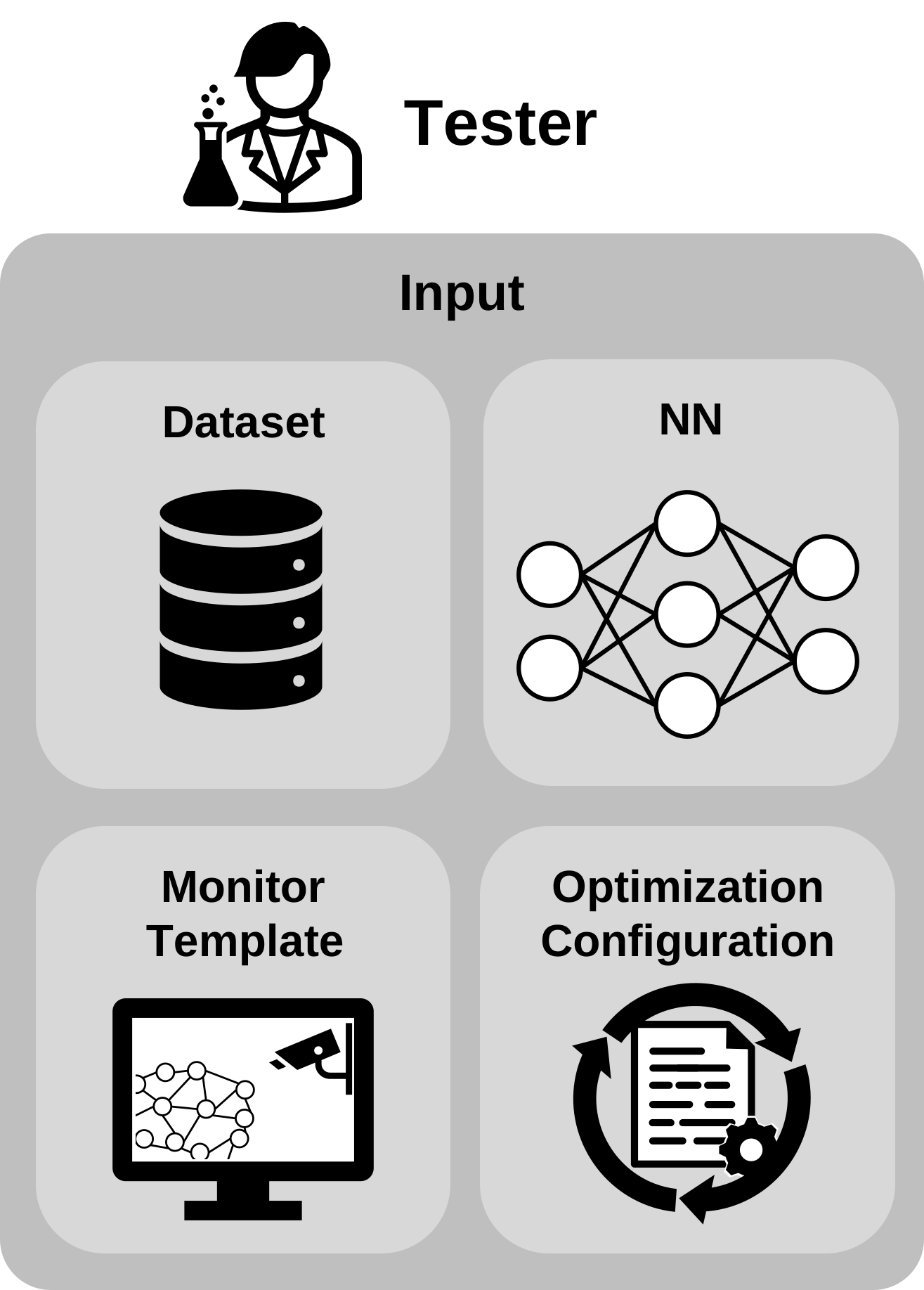
This use case can be seen as a starting point for a you. Obviously, you have something in mind when you installed Monitizer and came until this point in reading the documentation. But with this use case, you can experiment, without having to implement on your own.
You can vary the four inputs: the dataset, the NN, the monitor template and the optimization configuration. For the dataset, you have a choice between all pre-implemented ones (see Benchmarks).
We also provide some pre-trained NNs in the folder example-networks. They already have the correct format.
Lastly, you can choose one of the pre-implemented monitors (see Implemented Monitors) and simply use the given optimization configuration optimization-objective.ini.
For details on the optimization and its configuration, refer to Optimization configuration.
One example you can run is already provided in Your first command.
Others are
monitizer --evaluate --monitor-template maxlogit --dataset KMNIST --neural-network example-networks/KMNIST --optimize --optimization-objective optimization-objective.ini
monitizer --evaluate --monitor-template rmd --dataset CIFAR10 --neural-network example-networks/CIFAR10-VGG11 --optimize --optimization-objective optimization-objective.ini
Note that we changed the template from Energy to Maximum Logit and RMD. We also vary from MNIST to KMNIST and CIFAR10 and use the according NNs.
Use Case 1 - The End User
This is your section if you can answer one of the following questions with yes:
Do you simply want a working runtime monitor without having to understand how they work?
Do you have your own NN and maybe your own dataset?
Do you just want the best monitor for your application?
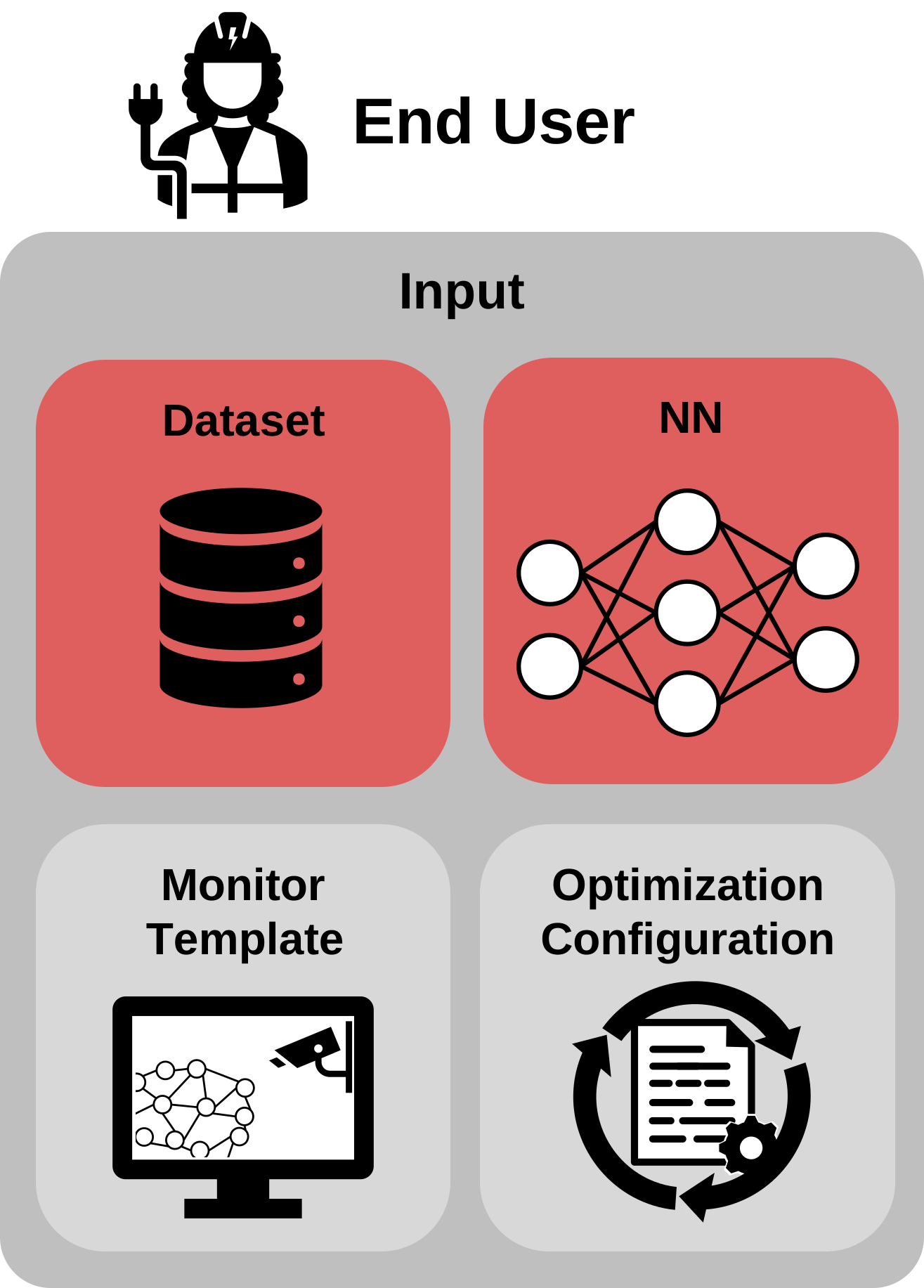
The main important inputs that you need to deliver are your dataset and your NN.
If you use a Torchvision dataset, your implementation effort is really small (see Implementation of a dataset).
To input your own NN, it needs to be either in onnx-format, or (preferrably) a torch-dump, i.e. generated by torch.save.
Essentially, it must be possible to load the NN by using torch.load and it must be of type torch.nn.Module (which is true for most NN generated with PyTorch).
Assuming you implemented your own dataset and you called it FancyDataset and you have an NN fancynet, you can call monitizer with
monitizer --evaluate --monitor-template all --dataset FancyDataset --neural-network fancynet --optimize --optimization-objective optimization-objective.ini
This will optimize and evaluate all monitors on your custom dataset and your custom NN. Note that it evaluates the monitors on the automatically generated OODs (see REFERENCE), unless you provided some OOD classes on your own (CHECK).
Use Case 2 - The Developer of Monitors
This is your section if you can answer one of the following questions with yes:
Are you interested in runtime monitoring and how it works?
Do you maybe have your own monitoring approach and want to compare it to other techniques?
Do you want to compare different methods in detail?
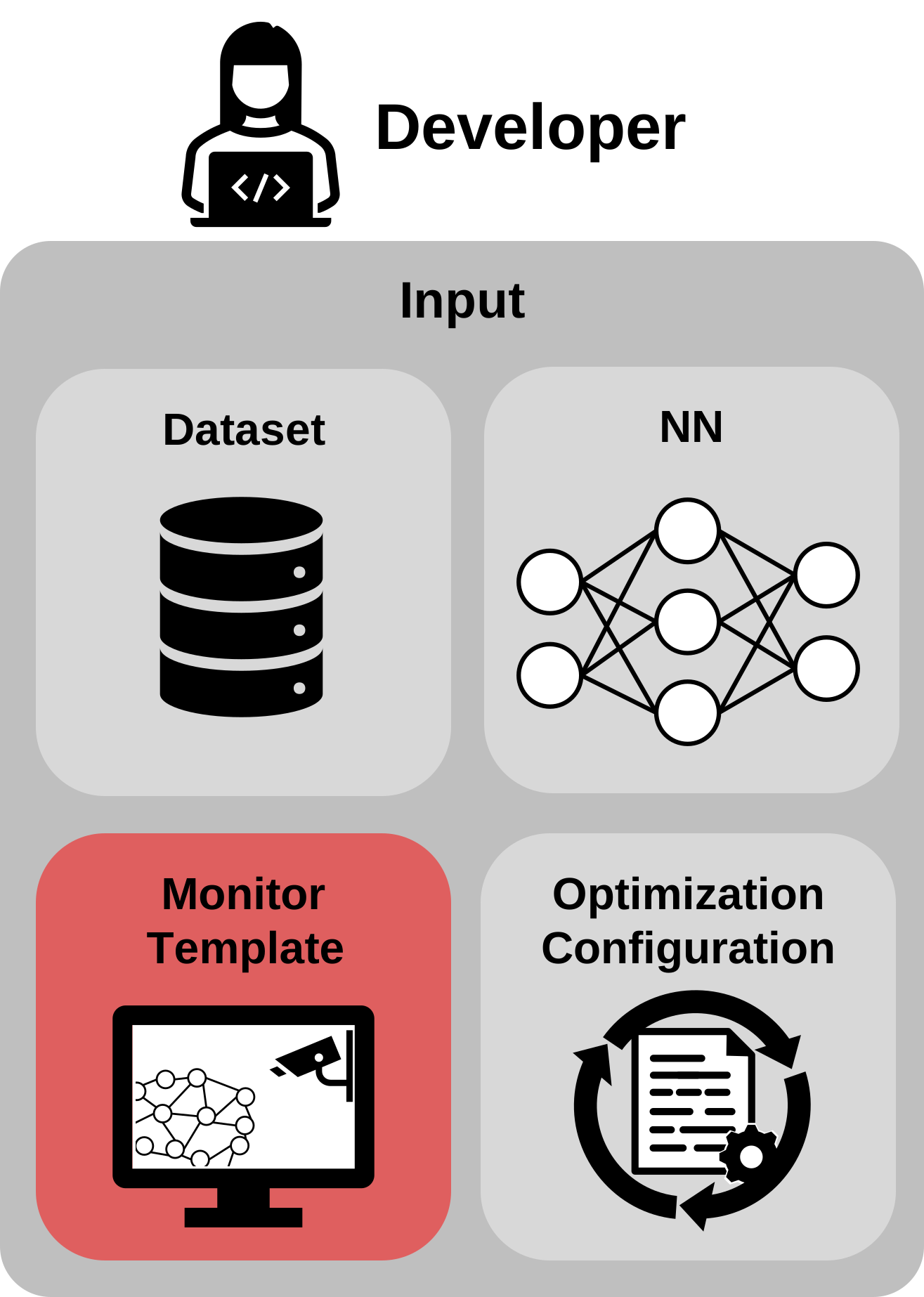
As a developer of monitors, you want to input your own monitor and evaluate it or compare it to existing monitors.
You have to implement the interface given by the class monitizer.monitors.Monitor.BaseMonitor().
You don’t have to fully integrate the monitor into Monitizer.
It is sufficient to input it in the call.
For more instructions, continue reading Implementation of a monitor.
Assuming you implemented the interface in the file ImplementedFancyMonitor.py in a monitor class called FancyMonitor, you call Monitizer with
monitizer --evaluate --monitor-by-user PATH/TO/ImplementedFancyMonitor.py -mu-name FancyMonitor --dataset MNIST --neural-network example-networks/MNIST3x100 --optimize --optimization-objective optimization-objective.ini
This will optimize your monitor on the given MNIST NN by default optimization parameters. You can also remove the optimization to just evaluate your monitor, if you don’t have hyperparameters or you have fixed them:
monitizer --evaluate --monitor-by-user PATH/TO/ImplementedFancyMonitor.py -mu-name FancyMonitor --dataset MNIST --neural-network example-networks/MNIST3x100
Use Case 3 - The Scholar
This is your section if you can answer one of the following questions with yes:
Are you a PhD student or already graduated and want to try out fancy things?
Do you just need some code base so you don’t have to do all the coding yourself?
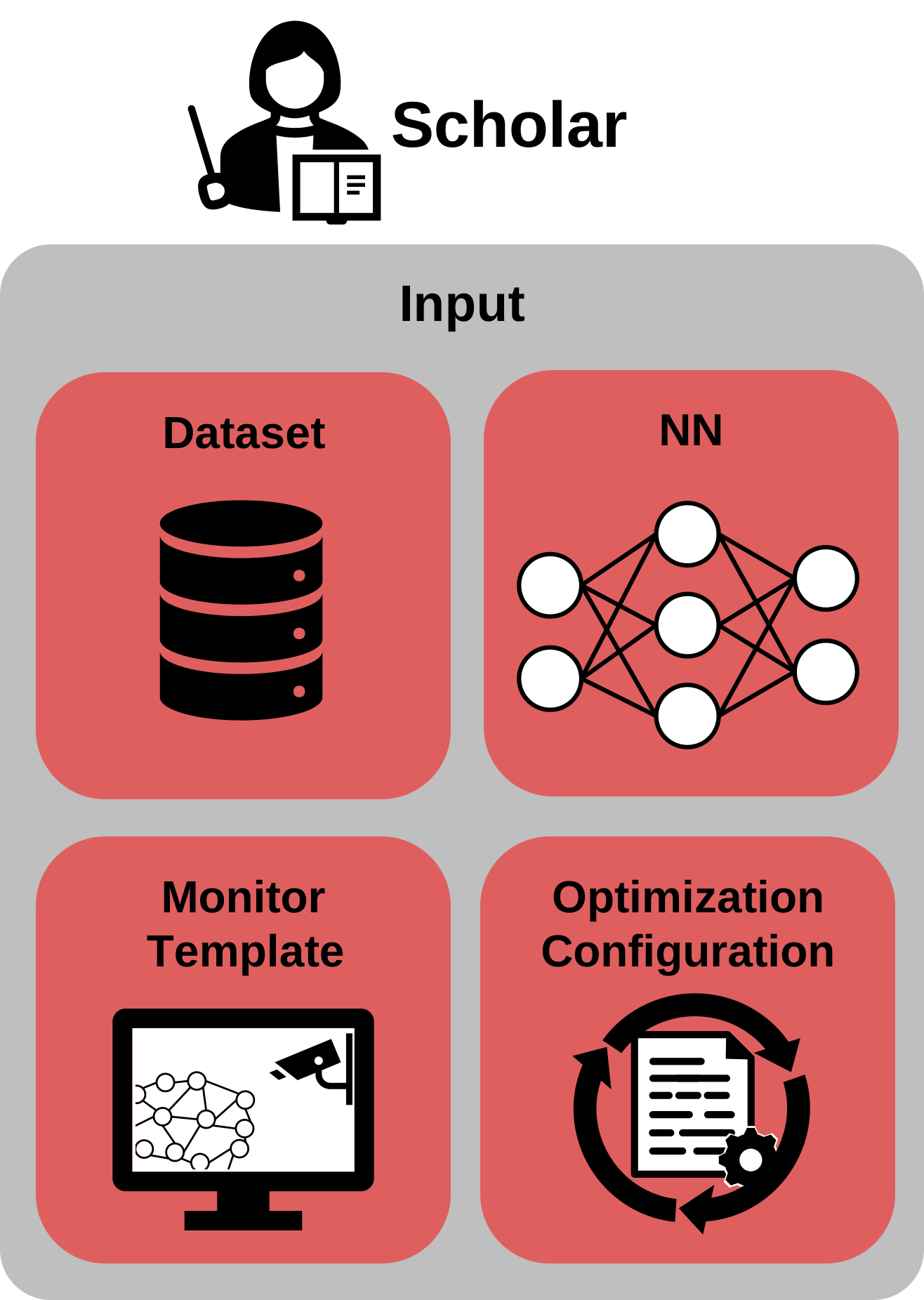
As a scholar, you might have many ideas on how to change the inputs of Monitizer.
In Use Case 1 - The End User, you have seen how to implement your own dataset and how to input your own NN.
In Use Case 2 - The Developer of Monitors, you have seen how to input your own monitor template.
You can also simply change the optimization configuration by changing the file optimization-objective.ini (see Optimization configuration for a detailed description).